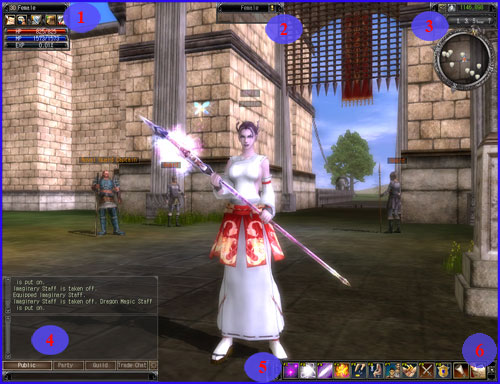
1. Status Window [Alt+T, T]
This window displays the current status of your character. Available information includes character name, level, hit points, and character's progress towards the next level.
2. Target Window
This Window will only be active if you know the Name and the HP of a monster or another character. The color of the name also indicates the strength of the monster in relation to your own level. An enemy whose name appears in blue would be weaker than your character, while one in red would be stronger.
3. Compass, Map, and Radar [Alt+W, W]
The Compass is located at the top-right hand corner of the game screen. The Compass points in the direction that your character is facing. This will assist you in moving within the large in-game environments. The Compass also helps in tracking targets, quest locations, or even other players. By clicking a target in the world, the radar will display the target in the Compass window and track it with a small dot.
4. Chat Window
This window display chat messages from the Game Masters as well as other players on Last Chaos. Chat are categorized into: All, Party, Guild, and Trade Chats. You may also select from the bottom row of tabs to filter chat messages or send messages without repeatedly entering their shortcuts.
5. Shortcut Bar
You may place items from your inventory window, actions from the action window, or skills and spells from the Skill & Magic window by dragging and dropping desired objects into the Shortcut Bar. The registered shortcut can be used by pressing [F1]-[F10] on the keyboard, or it can also be accessed just by a simple mouse click. Aside from the initial 10 slots on the Shortcut Bar, you are also given the access of up to 3 Shortcut Bars, giving you a total of 30 slots. You can access these additional shortcuts by clicking the arrows at the top of the bar, or by pressing [ALT + 1 - 3] or [ALT + F1 - F3].
Hot Keys
There are two available functions for hotkeys. One is to lock your hotkeys and one to unlock hotkeys. You can go into the system setting by pressing the ESC key or ALT + Z and select the option to lock or unlock your hotkeys. When the hotkeys are locked, you must press the ALT key as well as the hotkey that you wish to use. Below is the list of hotkeys you can use.
| Keys |
Function/Effect |
| Alt + T or T (Character Status) |
Character Status window consist of character bio-data, abilities points, skills points and PK status. Each time you gain a level you will gain One (1) ability point to add either your Strength, Dexterity, Wisdom or Constitution. |
| Alt + E or E (Inventory) |
Calls up the inventory window |
| Alt + S or S (Skills) |
Skills window consist of the combat skills, basic skills and job skills. |
| Alt + A or A (Actions) |
Actions window shows function keys for Attacking, Pick item, Run, Walk, Sit, Stand, Trade, PK mode, non-PK mode, Open map, Trade and Merchant. |
| Alt + F or F (Friend chatting system) |
Brings up the chat bar. |
| Alt + 1 - 3(Scroll pages of item shortcuts) |
Scrolls through 3 sets of skill/item shortcut bar. |
| F1 - F10 |
Activation of skills and items placed on the current active shortcut bar. |
| Alt + C or C (Emoticons) |
Emotions table consist of keys for Greeting, Smiling, Sad, Thumbs Up, Claps, Refuse, Show Off, Intimidate, Celebrate, Challenge and Bow. |
| Alt + G or G (Party and Guild) |
Party or guild window functionality is for inviting player to join your party or guild. |
| Alt + Q or Q (Quest) |
Quest window shows the quest that you have engaged and completed. |
| Alt + W or W (Map) |
Calls out the map of the area. |
| Alt + X or X (toggle all bars and windows) |
Toggles all bars and windows on and off for easy viewing and taking screenshots. |
| Alt + Z or Z, ESC (Game Menu) |
Allows access to the game menu. |
|